

[BIMPROPERTIES]
Manages user‐defined (or system generated) property sets associated with objects such as Supports, Conductors, and Insulators. Enables creating, editing, reordering, and removing these property sets and their definitions
Options:
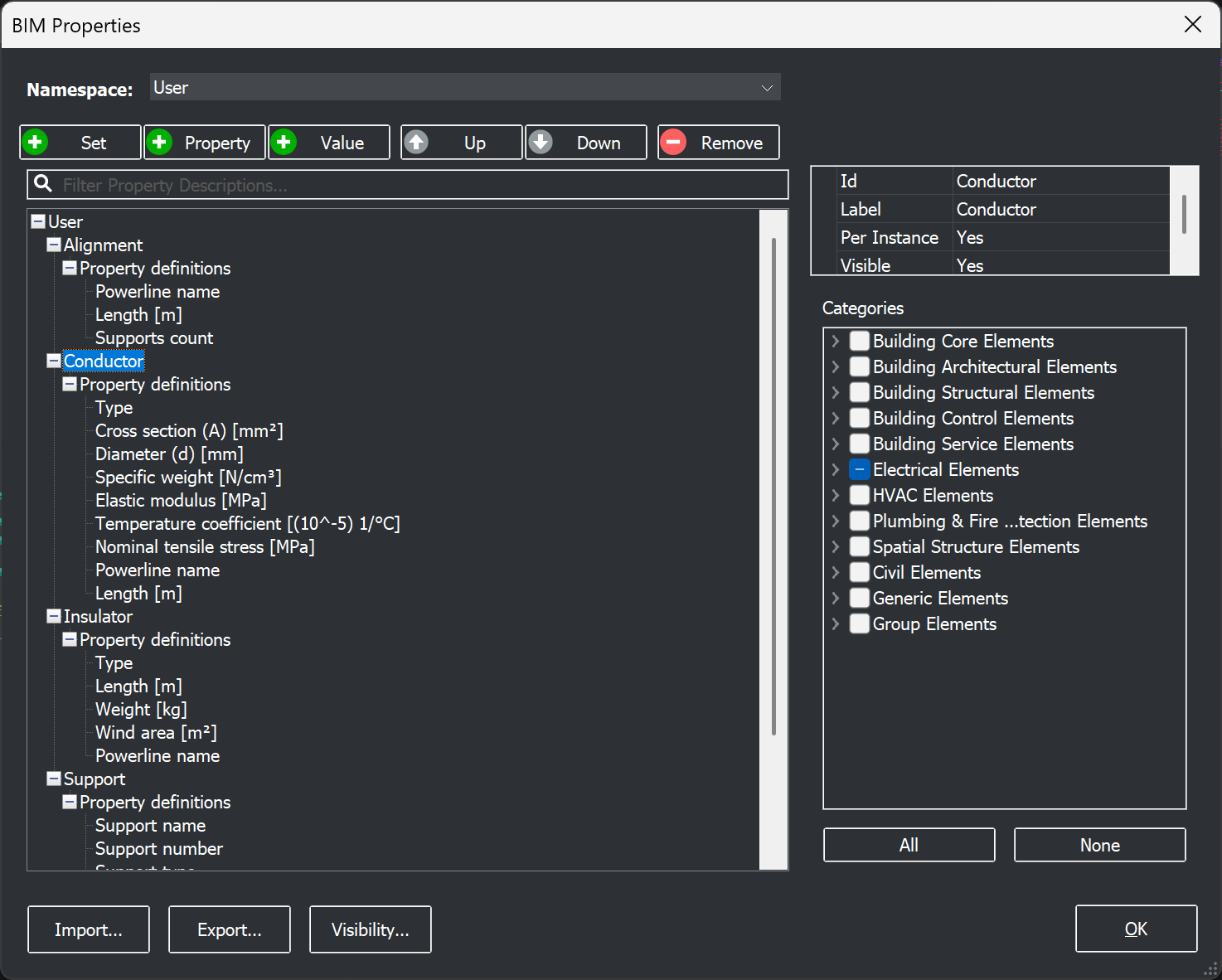
- Namespace: selects the namespace which is being modified (e.g., User).
- Property tree: shows the elements (Alignment, Conductor, Insulator, Support) and their property definitions (e.g., Length [m], Weight [kg]).
- Filter Property Descriptions: filters the displayed property definitions by keyword.
- Set button: creates a new property set in the selected namespace.
- Property button: adds a new property under the selected property set.
- Value button: adds a value to the selected property definition.
- Up / Down buttons: moves the selected property or property set higher or lower in the tree.
- Remove button: deletes the selected property or property set from the tree.
- Property details: shows the details of the item selected in the tree. For a property set these are Id, Label, Per Instance and Visible, and for a property Id, Label, Description, Type and Enum.
- Categories: BIM classifications which the selected element or property set is assigned to. The All and None buttons select or clear all of them.
- Import button: opens a dialog for selecting the file from which property definitions are imported. Two formats are supported:
- XML: a text file which contains property definitions, for example a namespace exported from another drawing.
- IDS (Information Delivery Specification): an XML-based format defined by buildingSMART, which describes the IFC properties, attributes and custom properties required in a BIM model. After the import, an IDS namespace is created and the properties which are not part of the standard IFC property sets are added to it. The Properties panel then shows only the custom properties and the IFC properties listed in the IDS file. This can be changed with the IDS Properties option in the Visibility dialog.
- Export button: saves the namespace selected in the Namespace list, together with its property sets, to an XML file. The file can then be imported into other drawings. Only the selected namespace is exported, and XML is the only export format.
- Visibility button: opens a dialog for setting the visibility of properties (e.g., Label, Visible: Yes/No).
- OK button: confirms and saves the changes, then closes the dialog.

Editing categories and BIM classification
Existing categories and the BIM classification of an element can be edited in this dialog. Select the element in the property tree (e.g., Conductor), then add or remove a category under Categories.
Adding new properties and values
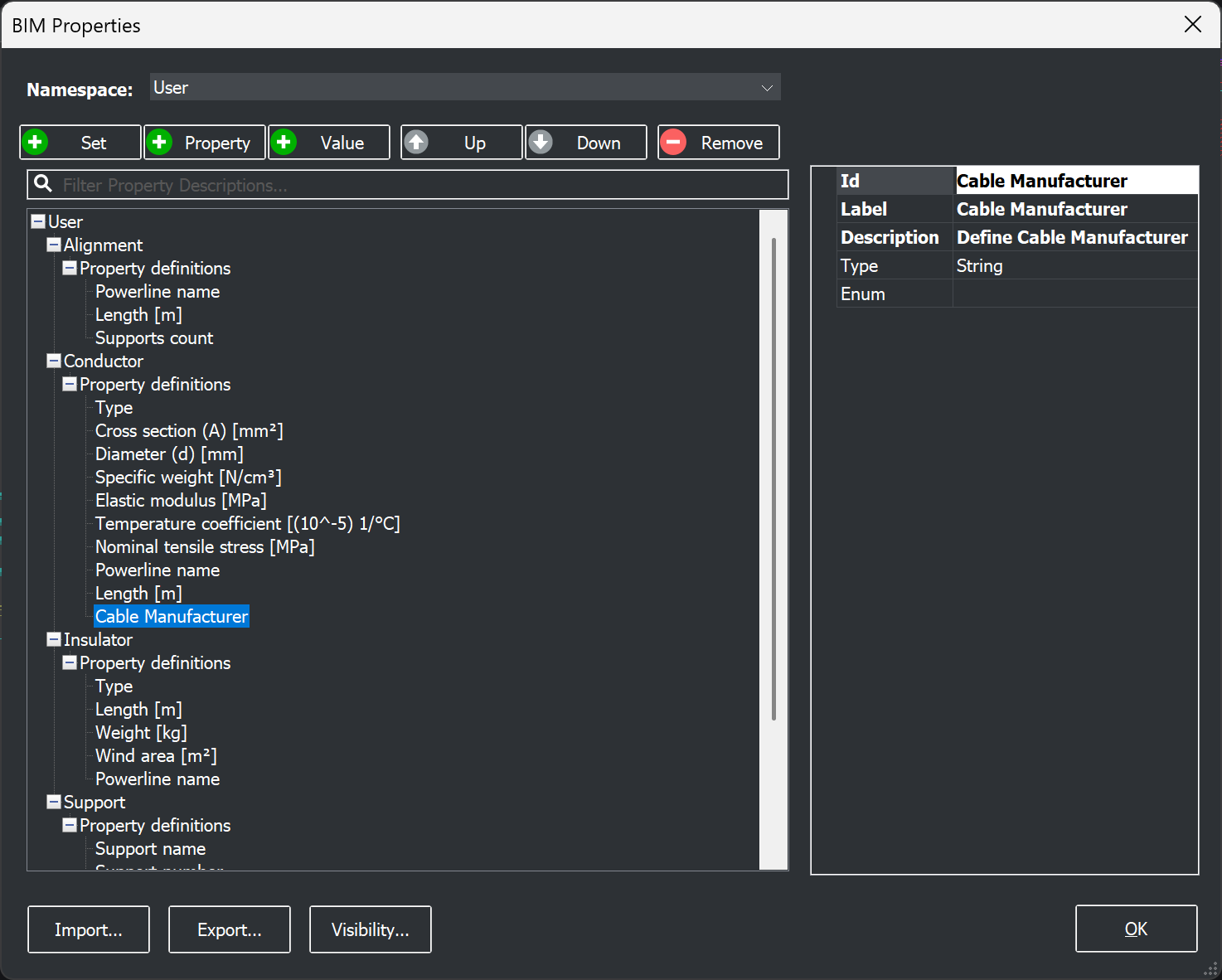
New properties and values can be added to an existing element. Select its property definitions, click the Property button and fill in the details on the right side of the dialog. In the example below, the property Cable Manufacturer of type String was added to Conductor.
Adding custom property sets
Custom property sets can be added according to the needs of the user, and assigned only to the desired elements, either immediately or when needed. Click the Set button, enter the name of the set, add its properties and select the classification under Categories. In the example below, Additional Conductor Property Set was added for electrical elements.
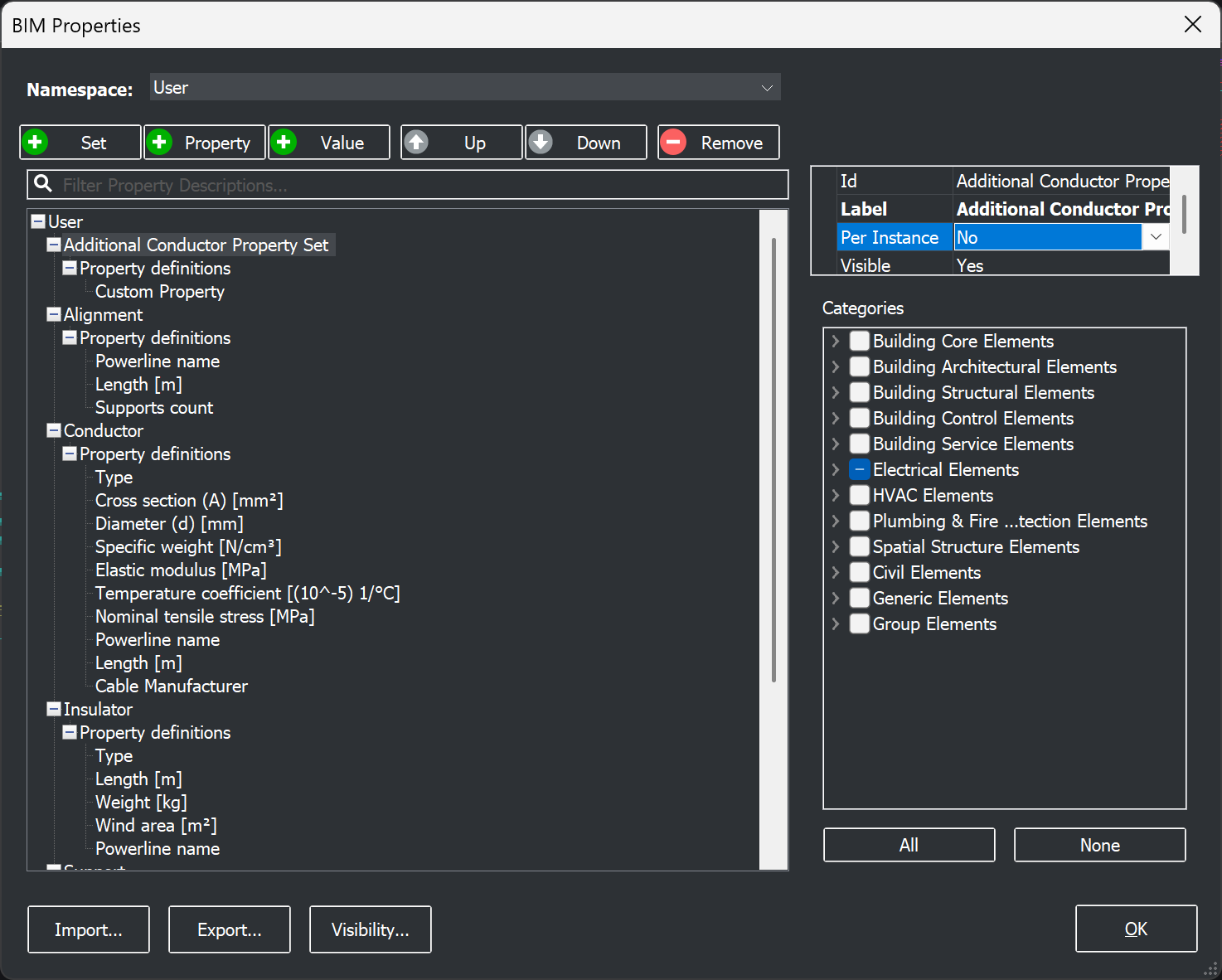
The Per Instance value defines how the property set is assigned, so it is important to choose it correctly:
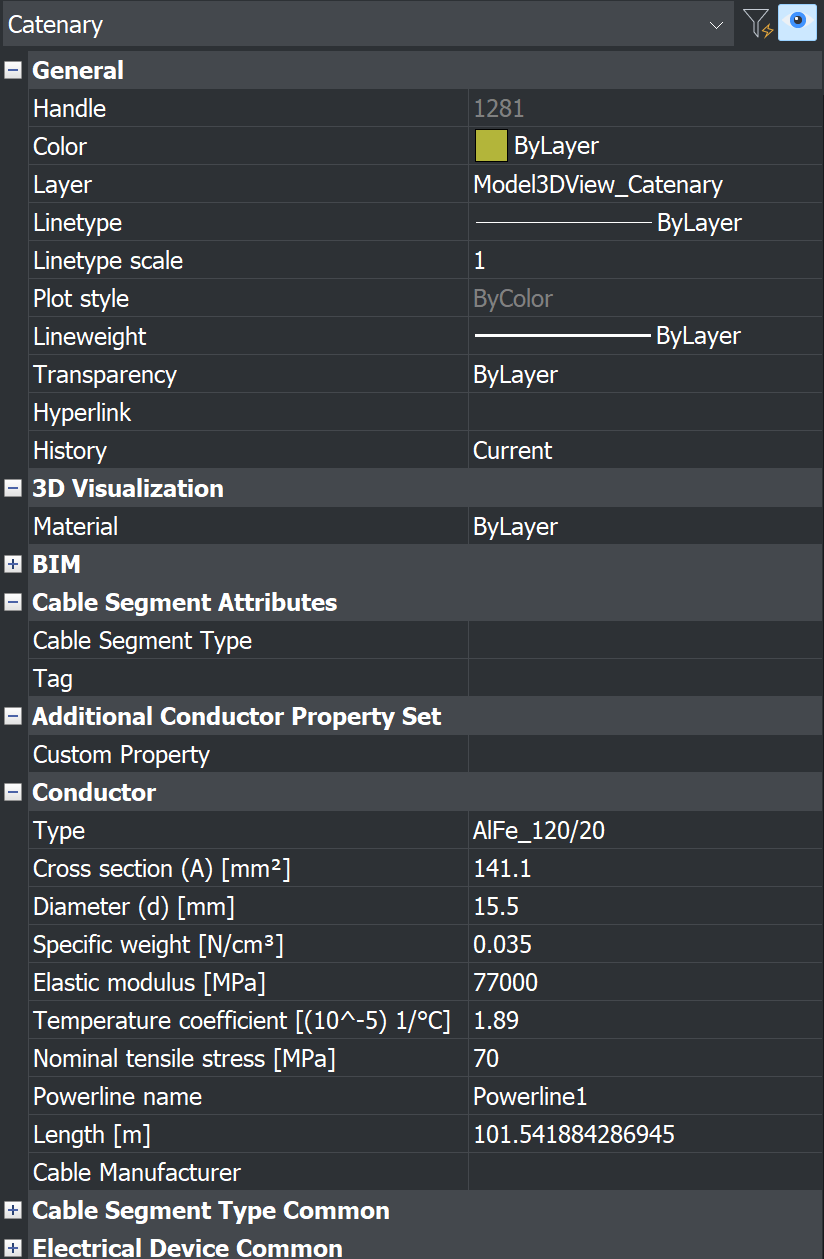
- Per Instance: No: the property set is shown automatically on the elements with the selected classification. In the example below, Additional Conductor Property Set is shown in the Properties panel of a conductor.
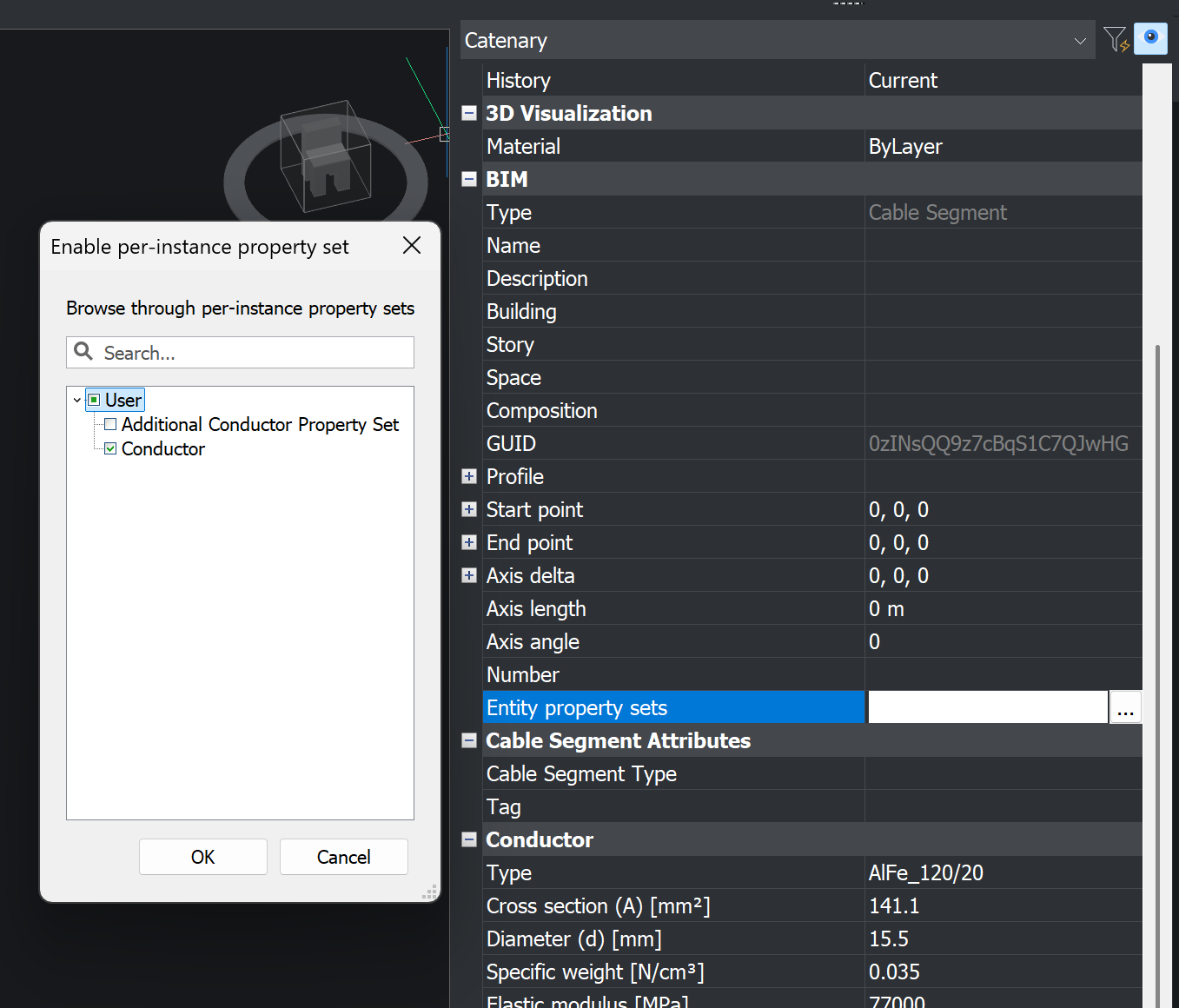
- Per Instance: Yes: the property set is not shown automatically. The user adds it to individual elements with the Entity property set option, by choosing the property set which should be added.
Watch video tutorial to see how the command works